
How to prepare PDF for better recognition
When PDF to Google Sheets recognizes a table, the algorithm looks for structure in the document — so the quality of the PDF directly affects the result. In this guide, we’ll cover a few simple preparation steps that can noticeably improve recognition and take just a couple of minutes.
Two types of PDFs: text-based and scanned and how to tell the difference
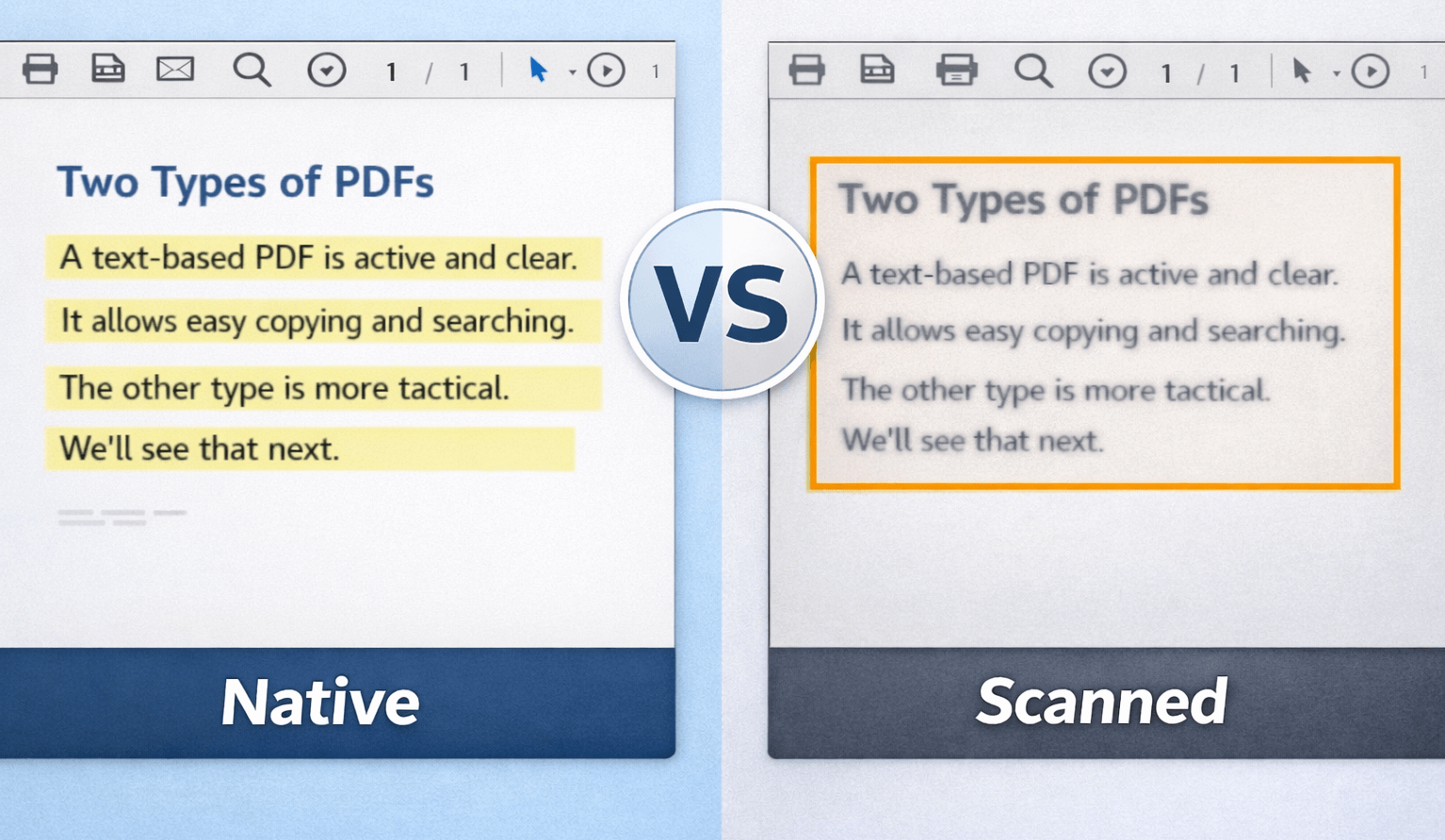
PDF files usually fall into two categories:
- Text-based PDFs — regular documents. You can select text with the mouse, copy rows, and search inside the document (Ctrl+F works).
- Scans or photos — PDFs made from images. Text selection doesn’t work, and pages look like pictures.
Text-based PDFs are almost always recognized perfectly. Scans require a bit more attention — but the good news is that our app works with both types of PDFs.
What to check in a text-based PDF
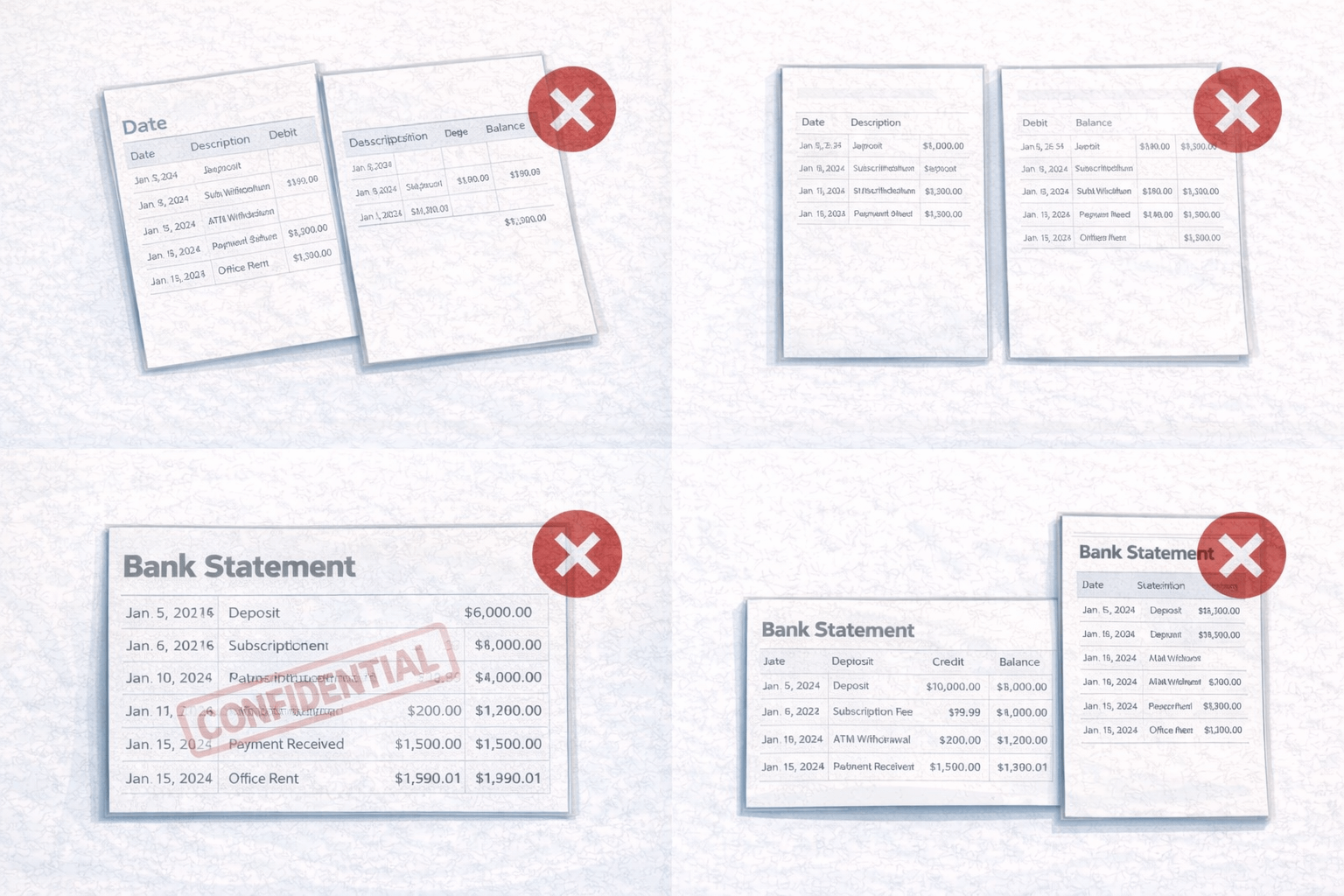
To get better results, take a quick look at the following:
- Tables aren’t split across pages in the middle of rows. If they are, it’s better to process those pages separately.
- Column headers are visible on at least one page.
- There are no watermarks covering the text.
- Pages with landscape orientation are best processed separately from portrait pages.
What to check in scanned or photo-based PDFs
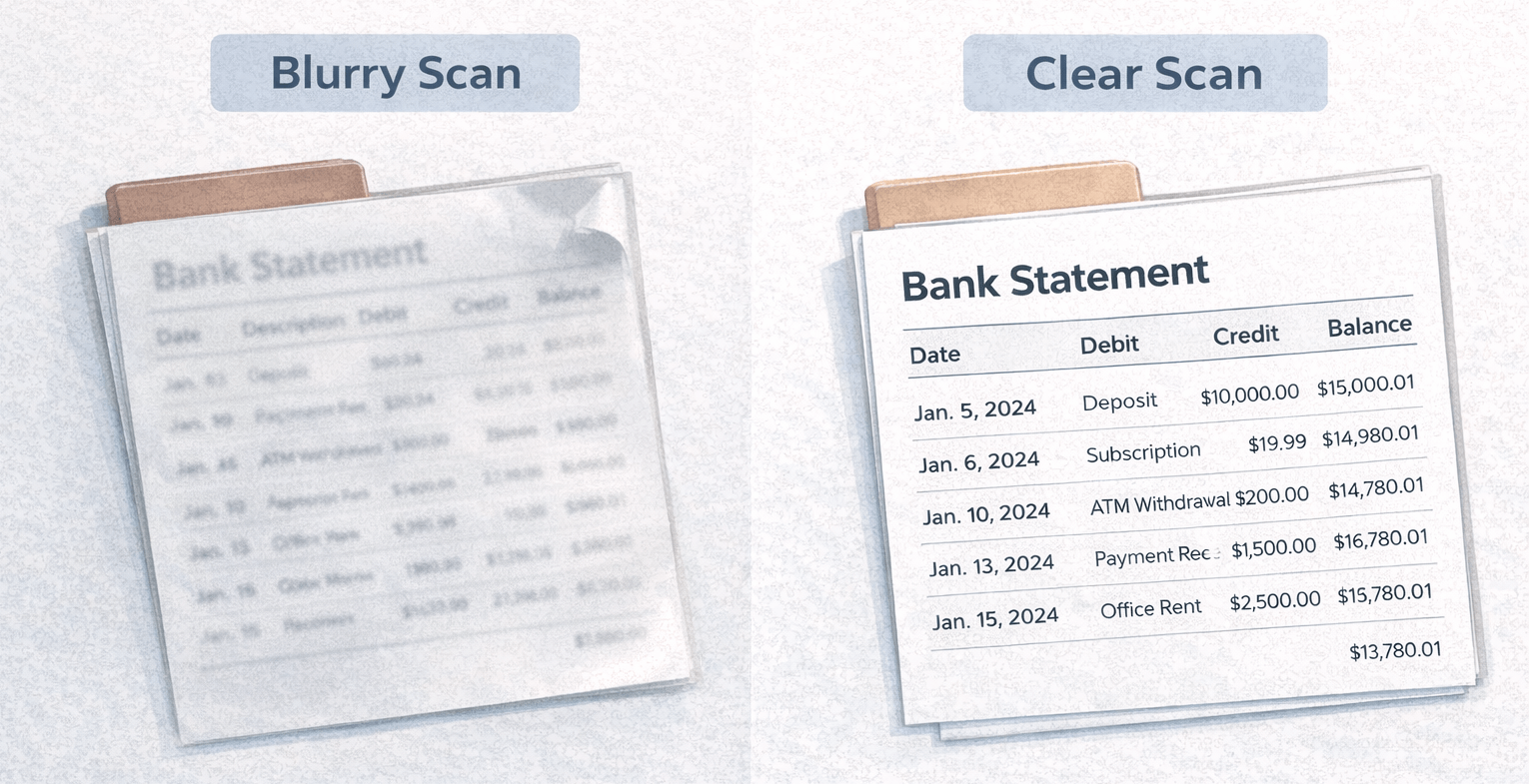
For scanned PDFs, image quality is the most important factor.
- Contrast: best results come when text is clearly darker than the background. Pale gray scans significantly reduce OCR accuracy.
- Resolution: higher is better. If the text is hard to read, it’s worth rescanning or retaking the photo with better lighting.
- Shadows and glare: avoid shadows and reflections — they reduce recognition quality. Extra shadows may even be detected as table lines.
What most often reduces recognition quality
These recommendations apply to all PDFs:
- Avoid stamps and signatures placed over tables. If possible, use a page without overlaps.
- Instead of heavily compressed PDFs, use the original file whenever you can.
- Check merged cells: data will be extracted, but the structure may be easier to fix directly in Google Sheets.
- Normalize data after extraction if different languages, currencies, or units appear in the same column.
- Avoid stamps and signatures overlapping tables (worth repeating — they’re one of the most common issues).