PDF to Google Sheets
Extract tables from PDFs into editable Google Sheets in seconds. No manual copy-paste. Visualize data, prepare reports, and share with your team.
Free • No signup • Files deleted automatically
This tool is perfect when
- You have a PDF table and need it in a spreadsheet fast
- Copy-paste breaks formatting
- You have lots of files and multiple tables
PDF2Sheets.app solves this, and the flow is as simple as it gets.
avg_pace
Quickstart
How it works
Get started in minutes with a simple 3-step process.
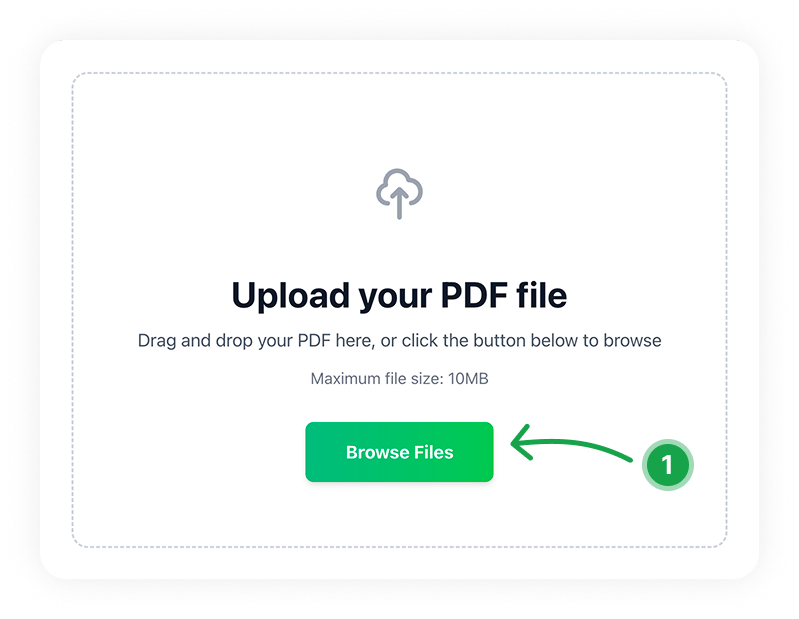
Upload PDF
Drag & drop the file or choose it from your device.
Select pages
Pick the pages you want to convert.
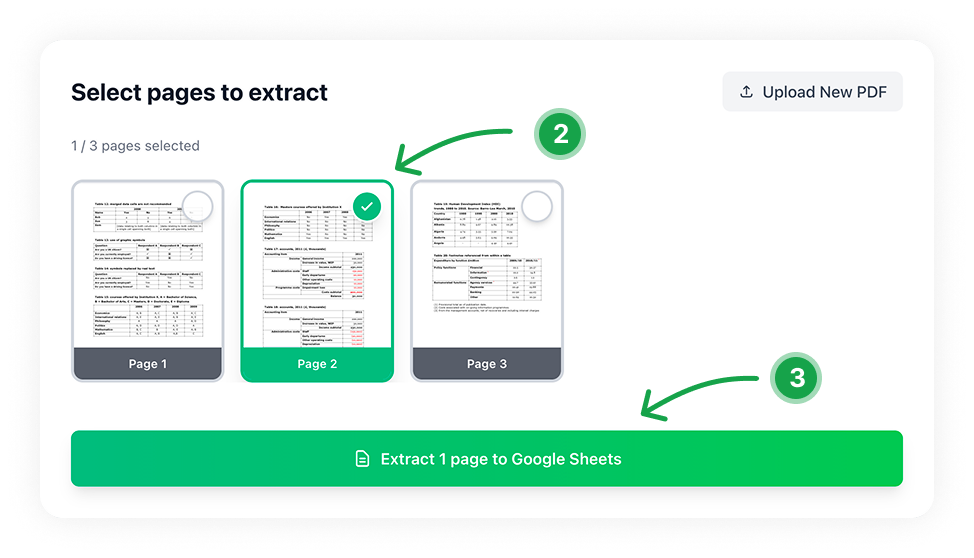
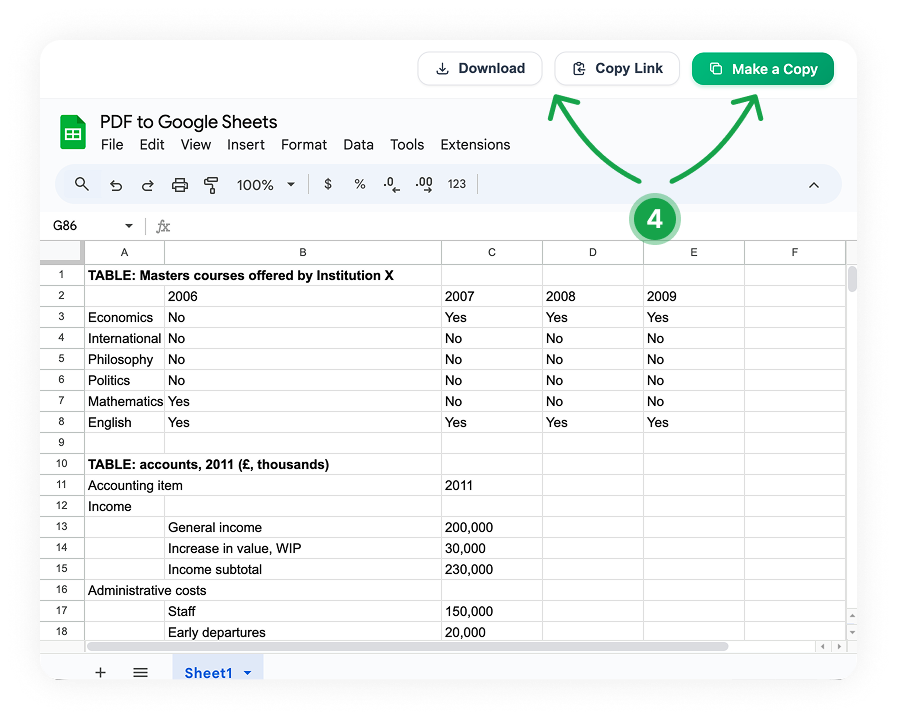
Get the result in Google Sheets
After conversion, you’ll get a Google Sheet with rows and columns. You can also download it as XLSX / CSV.
Features
Turn tables into usable data in seconds, not hours.
Works with scans and low-quality PDFs
Great results even when the file is a scan or the text quality isn’t perfect.
AI-powered table detection
Smart layout recognition helps extract tables cleanly, even from tricky PDFs.
Multi-page support
Convert long reports and keep exported data neatly separated page by page.
No registration required
Just upload your PDF and get the result instantly — no account needed.
Convert only the pages you need
Select specific pages instead of processing the whole document.
Export XLS / CSV (and more)
Download your data in the format that fits your workflow.
Who this tool is for
This service is helpful if you regularly receive data in PDF format and manually transfer it into spreadsheets.
Finance & Accounting
Finance specialists and accountants who constantly work with reports and invoices.
Business Owners
Business owners dealing with bank statements.
Researchers
Researchers collecting data from many PDF sources.
Students & Professors
Students and professors copying tables from textbooks and academic materials.
Data Analysts
Data analysts who need to convert tables into datasets.
Office & Admin Teams
Administrators and office managers working with PDF forms and documents.
Pricing
Use it for free — no subscription required.
-
Free$ 0
-
100 pages/day
-
Support of scanned PDFs
-
Export XLSX, CSV, ODS, TSV
-
-
ProComing soon
-
500 pages/day
-
Support of scanned PDFs
-
Export XLSX, CSV, ODS, TSV
-
Batch conversion (multiple PDFs)
-
Priority processing
-
Priority support
-
Privacy & security
We take your documents seriously. Your PDFs are processed only to convert tables into Google Sheets.
Encrypted upload
All files are transferred securely over HTTPS.
Auto-delete
Files are deleted automatically right after conversion.
No human access
Your documents aren’t reviewed or shared.
FAQ
- Do I need to connect my Google account?
No. We create a Google Sheets file and give you a link to the result. If you want to keep it in your account, just click “Make a copy” — and the copy will appear in your Google Drive.
- What happens to the PDF after conversion?
The file is used only for recognition and is deleted after processing. We don’t manually review documents and don’t use them for anything else.
- How accurate is the extraction?
In most cases, numbers, dates, and columns transfer correctly — especially when the PDF is high quality and not scanned. If the document is complex (for example, a low-quality scan with stamps or seals), some inaccuracies may occur, so we recommend double-checking the key fields before using the data.
- What kind of data can be extracted from a PDF?
Types of structured data: tables, lists, charts, and diagrams. Types of documents: price lists, reports, statements, invoices, and more.