
How to extract a table from PDF to Sheets
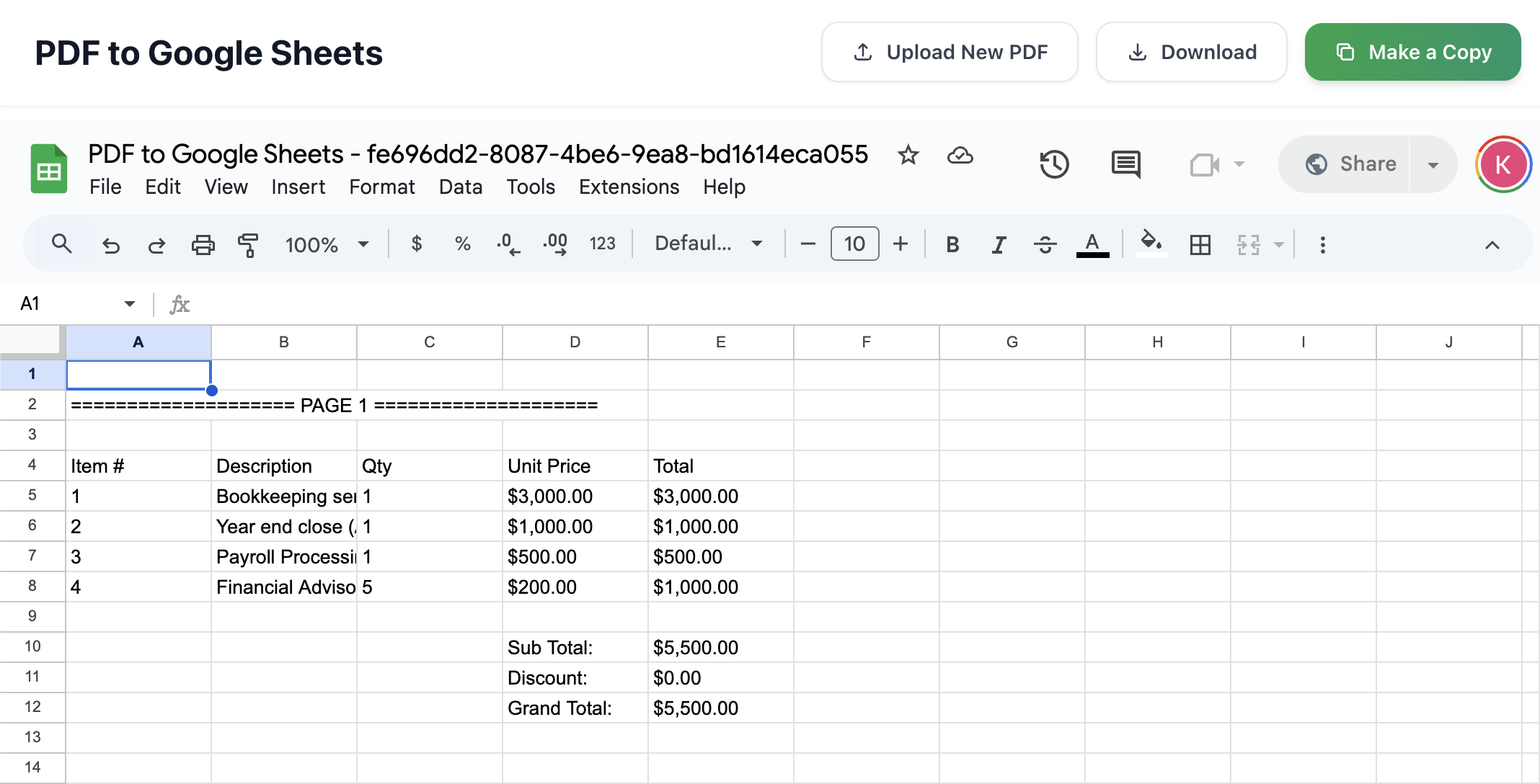
This is what a converted table looks like — you can edit it, sort it, and calculate totals.
How to extract a table from a PDF (step by step)
Go to www.pdf2sheets.app and follow the steps below:
1) Click the Browse Files.
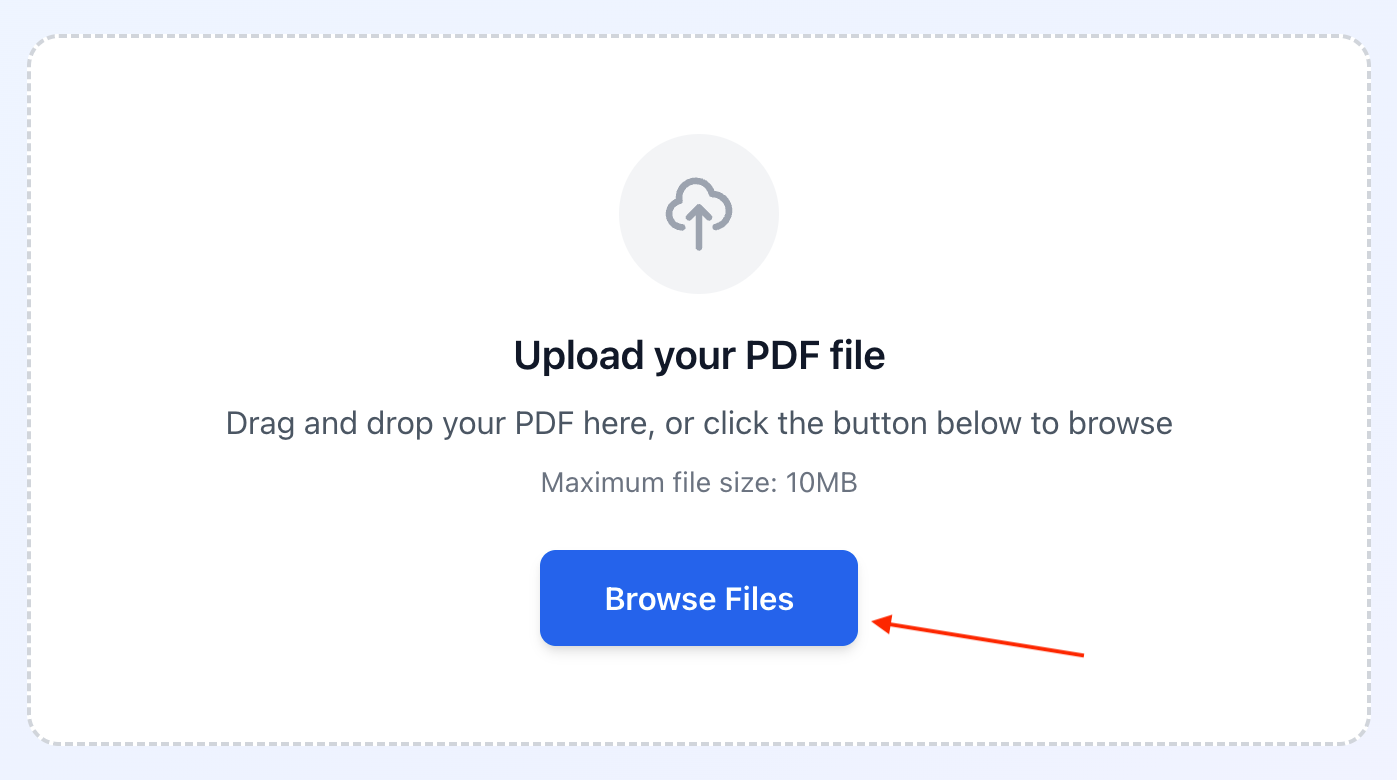
You can also drag and drop PDF files here.
2) Select your PDF.
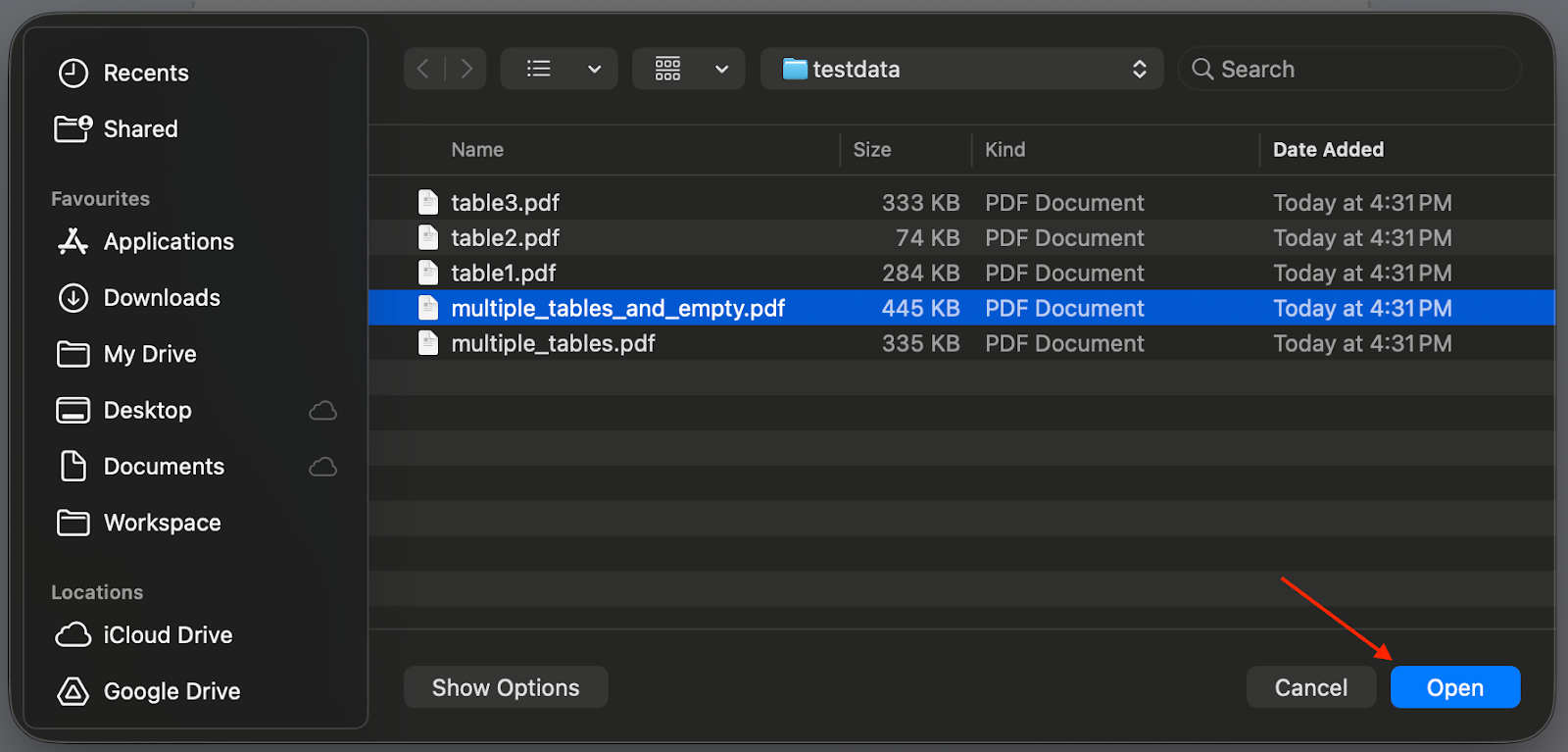
The file will upload to the service. It usually works best for invoices, delivery notes, handover reports, and bank statements. Scans are also supported — just keep in mind the accuracy depends on the document quality.
3) Choose the pages you want to extract.
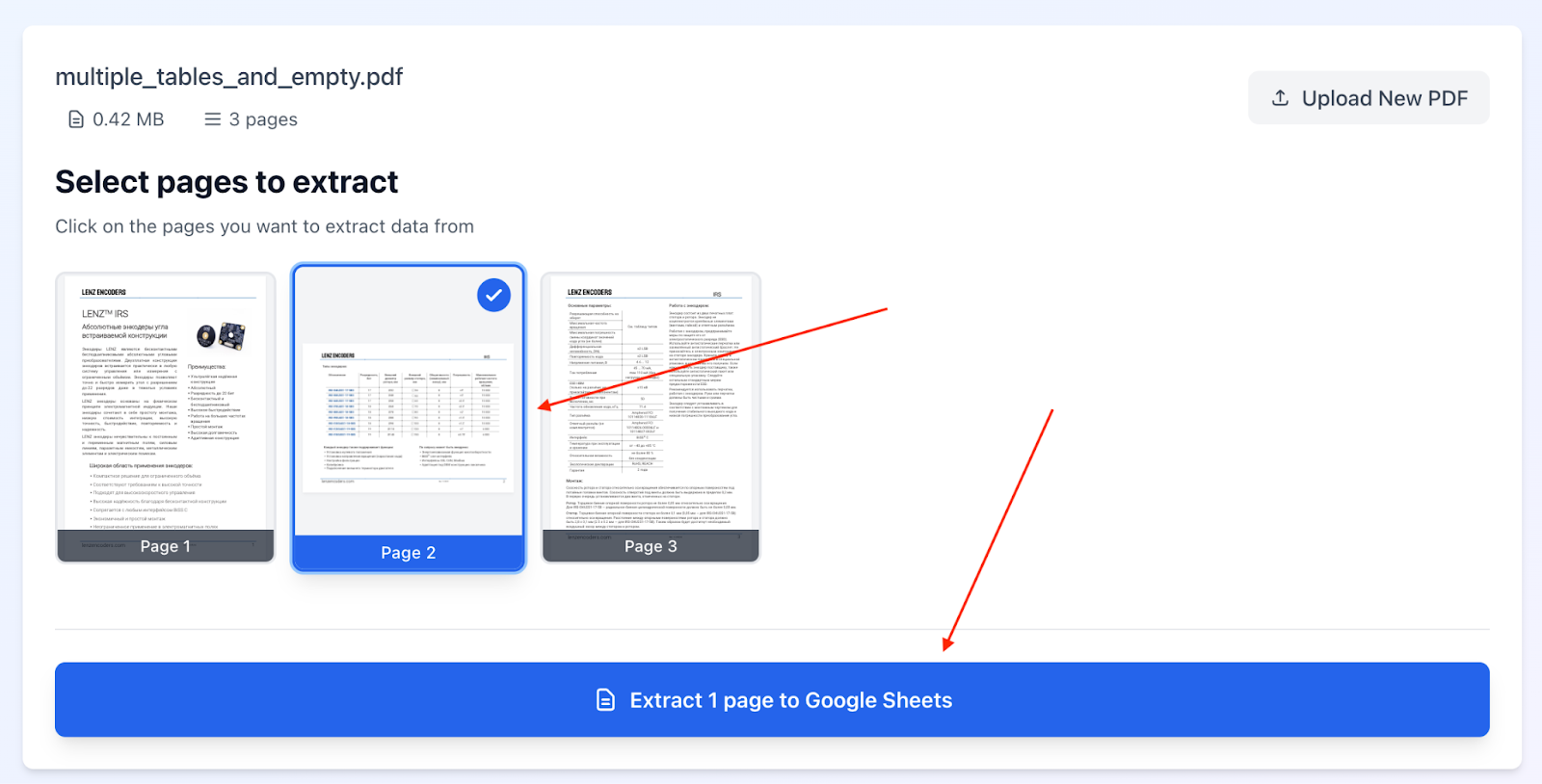
If the table is only on a few pages, select just those pages — it will be faster and usually more reliable.
4) Click the Extract to Google Sheets button.
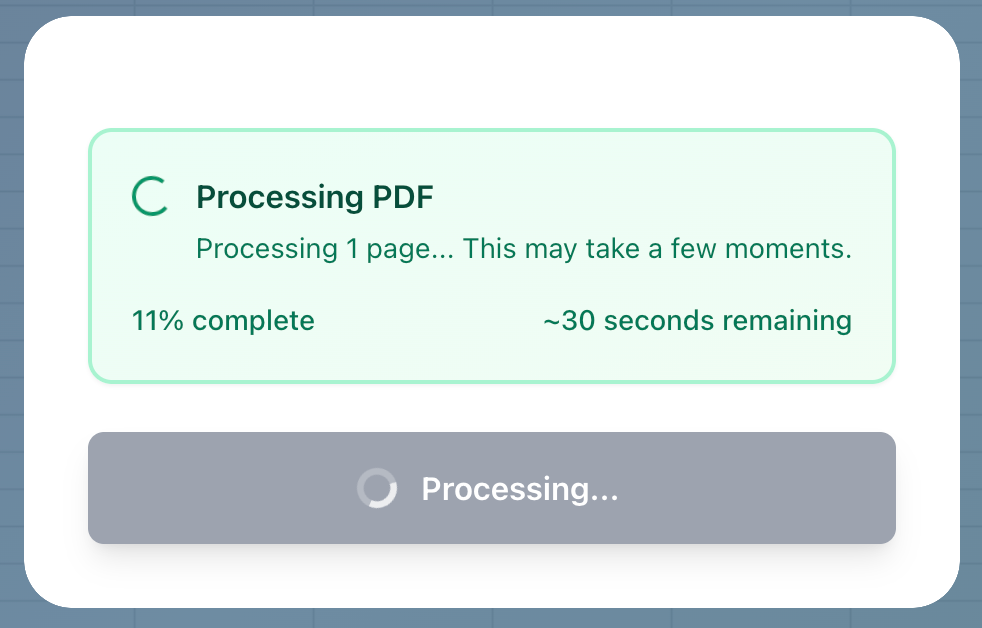
Wait for the conversion to finish.
5) Your table opens in Google Sheets.
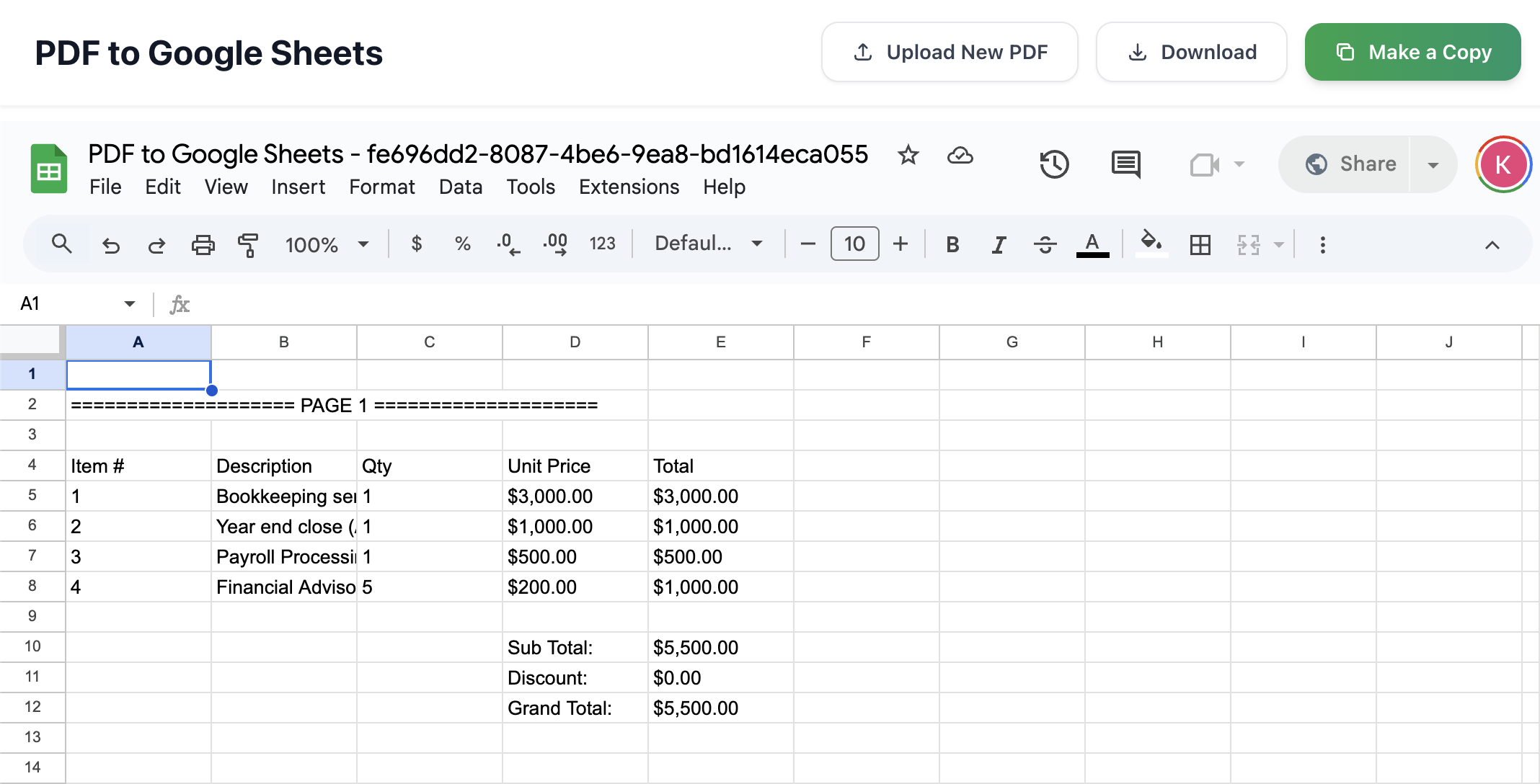
From there, you can edit it, add formulas, filter rows, and share the link.
6) Save the table to your account or download it.
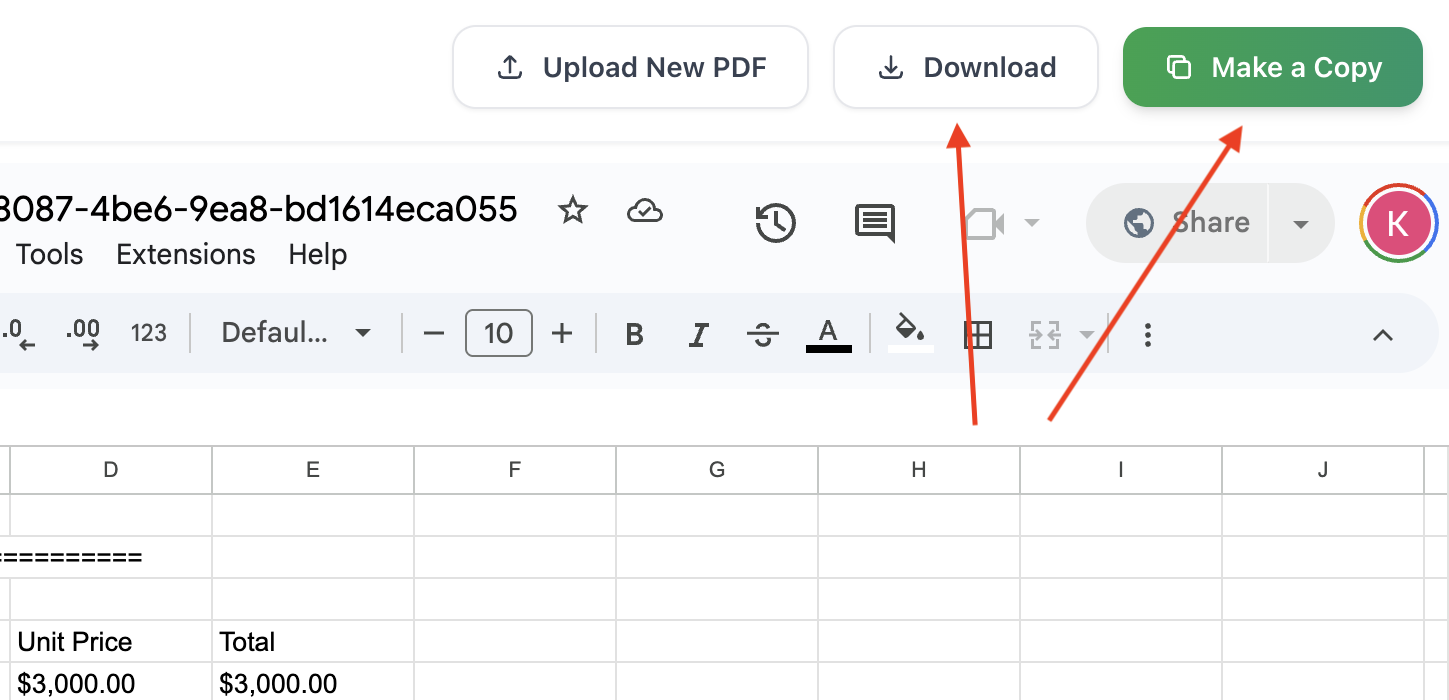
To keep the table in your Google account, click Make a copy. You’ll need to sign in to Google.
If you’d rather download the file, click Download and choose a format — Excel, CSV, and more.