
How to create a unified list of transactions
In accounting, PDF documents are everywhere: delivery notes, acceptance reports, invoices. To reconcile amounts, prepare reports, or collect data into a single register, these documents usually need to be transferred into a spreadsheet.
Common problems with these PDFs
- documents are formatted differently
- stamps and signatures overlap the text
- tables don’t fit on one page and stretch across multiple pages
- if the document is a scan, data can’t be extracted without OCR
PDF to Google Sheets extracts tables and lists from PDFs and turns them into an editable Google Sheets table. After conversion, the data can be sorted, checked, and used further.
Below is an example of a delivery note converted into Google Sheets:
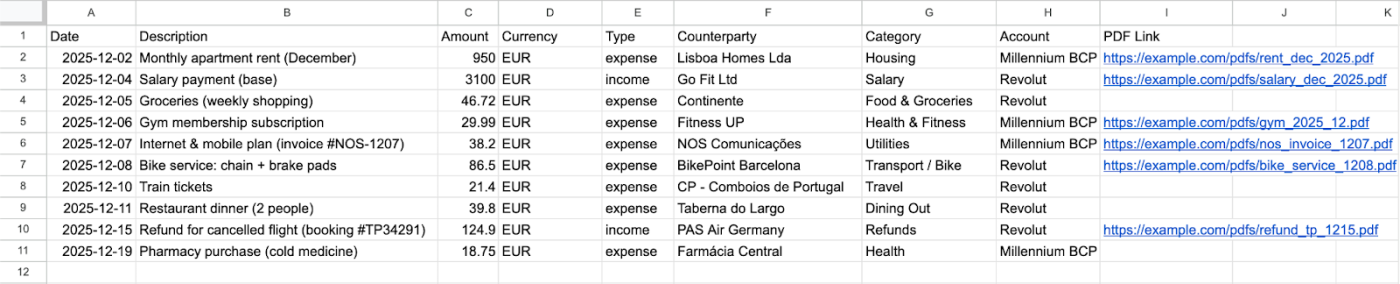
Bringing documents into a unified format
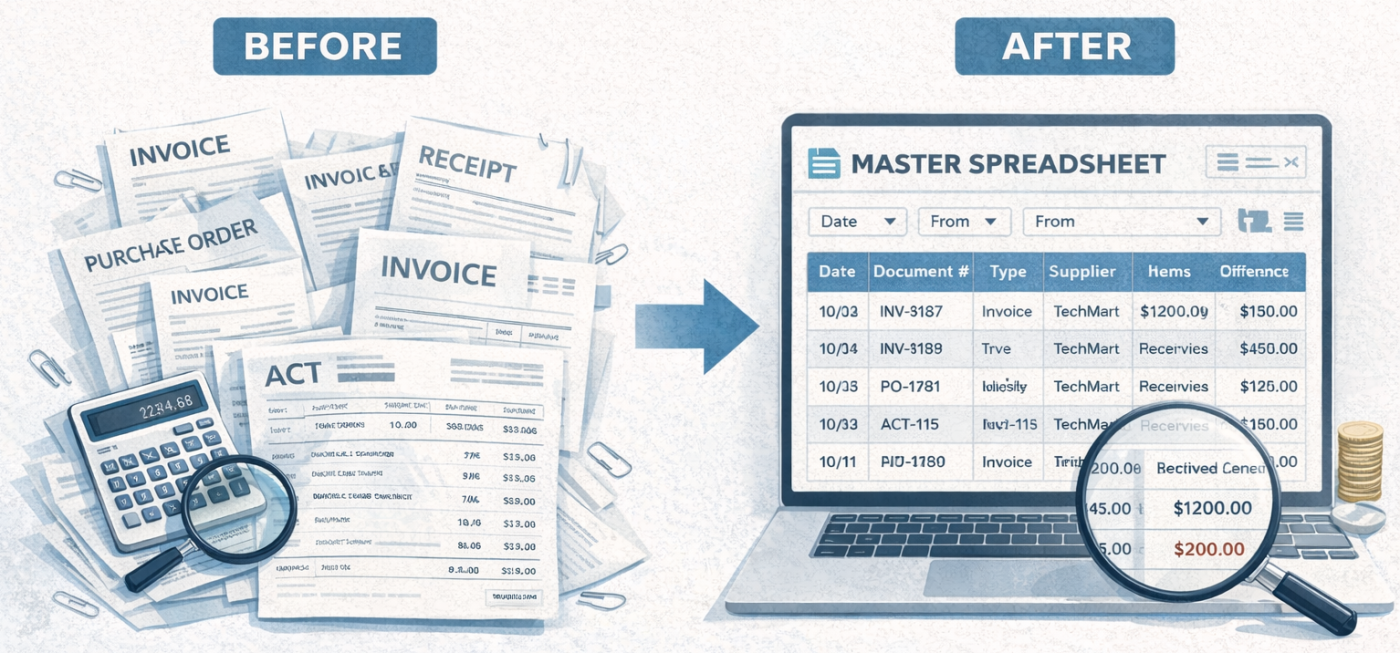
For accounting, it’s not enough to just transfer numbers — everything needs to follow the same structure: consistent columns, clear field names, and a clean layout. This makes it easy to combine delivery notes, reports, and invoices into one list, quickly filter by supplier or date, and spot discrepancies.
What data is usually extracted from delivery notes, reports, and invoices

After conversion, the following fields are typically exported into the spreadsheet:
- document number
- date
- counterparty / supplier
- line items (goods / services)
- quantity and price (if available)
- amount
- VAT / tax rate (if available)
- document total
What to do next with the table in Google Sheets
Once documents are standardized, it’s convenient to manage them as a register:
- combine documents from different counterparties into a single table
- filter by date, supplier, amount, or status
- quickly find discrepancies (for example, document totals vs payments made)
Statuses and links to the original PDF
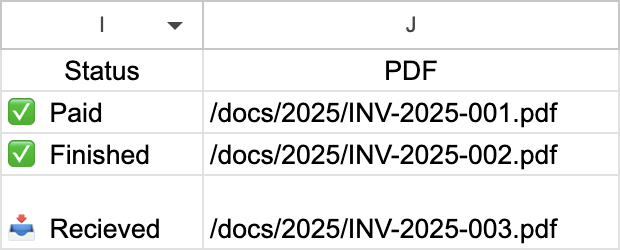
It’s also useful to add a status right away (received / processed / paid) and include a link to the original PDF. This turns the spreadsheet into a working tool rather than just an archive.