
How to combine multiple PDFs into a table
How to combine multiple PDFs into a single table If you have 10–50 PDFs with tables, merging them manually is slow and frustrating. Copying data by hand takes hours and almost always leads to mistakes, and building a consistent table structure turns into its own problem. In this article, we’ll go through a simple way to build one consolidated report quickly and reliably.
Common scenarios where this comes up
You’re working with documents that regularly arrive as PDFs: supplier delivery notes, bank statements, price lists, or operational reports (invoices, prices, statements, reports — all the usual stuff).
The strategy is straightforward: process the documents in batches and standardize the data as you go.
Convert in batches and merge into one Google Sheet
1) Split the task into matching chunks
The hardest part is combining documents with different structures. So start by choosing one document type — for example, only invoices, or only bank statements for a specific period. Each file will be converted into its own Google Sheet.
2) Convert each PDF into Sheets

Open pdf2sheets.app → Browse Files → select the pages → Extract. You’ll end up with one separate Google Sheet per file.
3) Standardize the column headers
This is the key step. Open the first exported sheet and treat it as your “reference” version.

Then, for every new sheet, quickly rename columns to match that reference (usually takes just a few minutes per file).
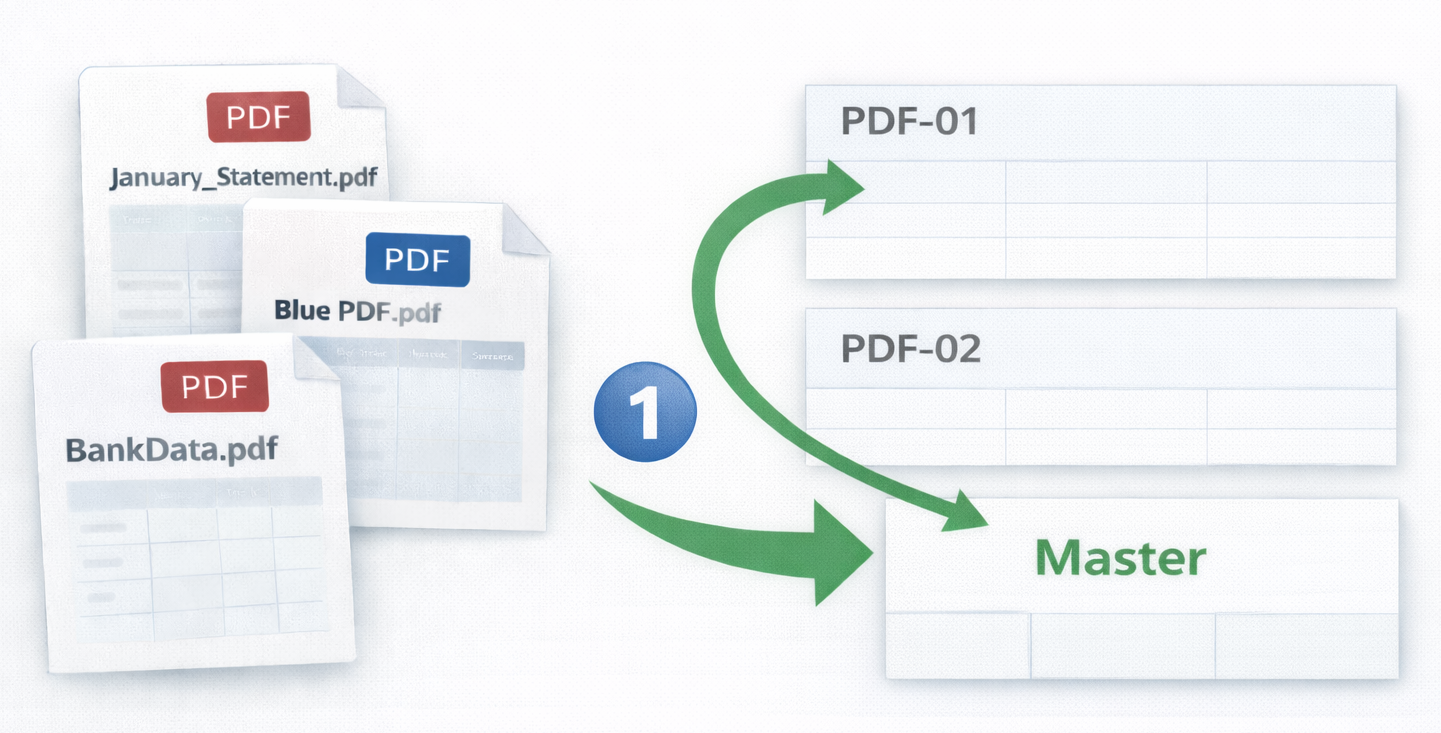
4) Create a new Google Sheets file called “Master”
For each exported file:
- select the table without the header row
- copy it
- paste it to the bottom of the Master sheet
If you have many files, it can be helpful to create temporary tabs for each export first (for example: PDF-01, PDF-02, etc.), and then move everything into the Master sheet.
5) Keep everything in one master file
Once all tables are added, you’ll have a single dataset you can filter, analyze, and use for reporting.
6) Do a quick error check in the Master sheet
- Row count: does it roughly match the sum of rows across all files?
- Totals: reconcile totals in a key column (for example, Amount)
- Empty rows / duplicates: use Data → Remove duplicates
Tips to speed things up and keep data organized
- Do formatting and cleanup at the end, after all data is collected.
- Select only the pages that actually contain tables.
- Work with one document type at a time (invoices, statements, price lists).
- Decide on a column structure upfront and stick to it across all files.
- Always paste tables into the Master sheet without the header row.
- Save formatting and cleanup for the end (yes, it’s worth repeating).
Summary
Even 50–70 PDFs can turn into one clean report in an evening — without retyping and without fighting formatting all the way through.